Administration
Front-end administration docs
Authentication
Once the application has been deployed, an administrator can access the interface at the root of the domain. Login with the default credentials to get started: testadmin:integrationbridge

Login Page
The application currently uses basic authentication but can be adapted for use with SSO, OAuth2, or LDAP. Clicking on “Remember Me” will place a tamper-proof cookie in the user’s local browser storage.
Passwords are hashed and salted when stored in the database.
Add Token
The Add Token page is where administrators can add App Tokens that they’ve generated for third party integrators to use for accessing the Kaltura APIs. The App Token Id and App Token are required. Entering a label is optional.

Add Token
Labels
A label can be used as an additional identifier for an app token and makes storage of the app token more useful. Currently, labels can be forced for use on the configuration page of the integration bridge. If labels aren’t being forced, they should still be used as an additional identifier for admins to use when tracking many app tokens.
See the configuration page documentation for more information about forcing label usage. Future use for labels to be introduced:
Requiring the use of labels will help to obfuscate tokens completely if used with a special key. This eliminates the need to pass around tokens and ids altogether.
Labels will help to provide meaningful information in logs.
Pull Additional Token Info Checkbox
This is optional but will allow an admin to pull more information from Kaltura when adding a token to the integration bridge. A Kaltura admin will need to generate a Kaltura Session token (KS) and populate the provided text box before submission of the token.
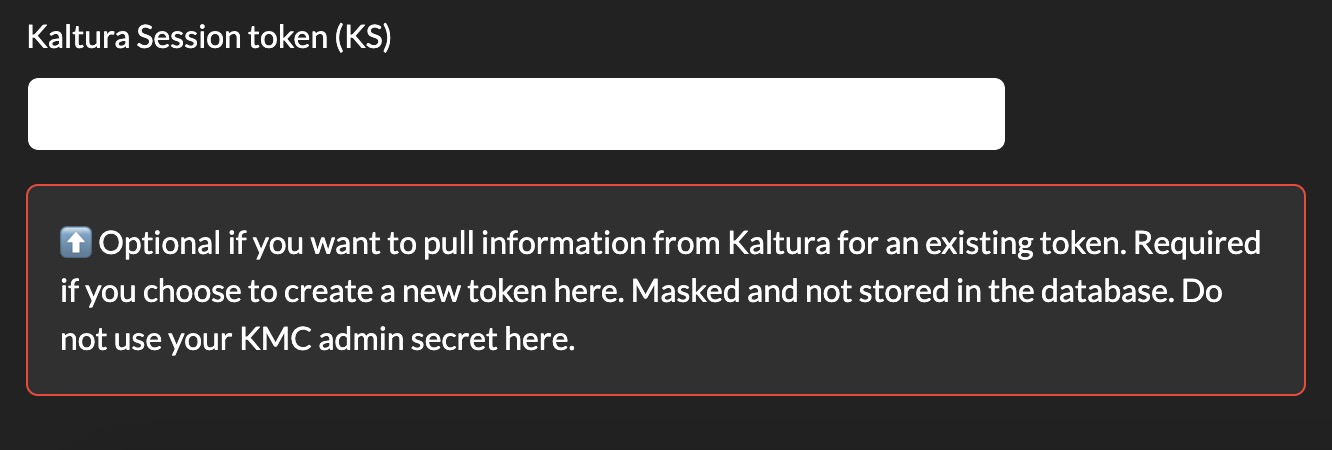
Kaltura Session Token Entry
If the box is checked and no KS is provided (or if the box isn’t selected at all), the token will be added to the management list / database, without the following additional information:
Assigned Privileges (if any)
Expiration Date and Time
Session Duration
Session User ID (if any)
Description (if any) - Can be added by an admin when creating a Kaltura App Token
Once the token has been added, it will show in the list on the Manage Tokens page.
Manage Tokens

Manage Tokens Page
The Manage Tokens page contains a list of tokens that have been submitted to the database by an administrator, through the Add Token page. The Integration Bridge does not currently maintain an active connection to any given system (e.g. Kaltura). The primary functionality of this page, as it stands, is used for keeping tokens organized.
Current functionality:
View a list of all tokens currently in the database and the system to which they belong.
View the description provided when the token was generated.
View any notes created by administrators about each token and any labels applied.
View token details and expiration notifications.
Future functionality:
Ability to edit and pull additional info from a source system.
Fully delete a token.
Add Tokens for more EdTech systems. Currently only Kaltura is supported.
View More Info

Manage Token Expanded View
Clicking on “More…” within a token’s card will expand the details view for a specific token. Any current labels assigned to a token can be viewed here in addition to any info populated from the source system when the token was added.
Logs Page

View Logs Page
Events are logged on this page. Logs are stored in local UTF-8 format and are downloadable in a single file download.
Future functionality:
An API endpoint will be provided, tied to log retrieval, for use by internal log aggregation, montioring, and data analysis systems.
Logged Events:
Endpoint successes and failures.
IDs of data retrieved.
Sesson Token ID used.
If a new session was created or reused for subsequent API methods (GET, POST, etc)
Interface Bridge Logins – user id and role (‘developer’ coming soon).
Locked endpoint usage – logs user namd and success / failure.
Kaltura-only: Category blocks: “attempted by not allowed”.
Configuration Page
Kaltura Category Restrictions
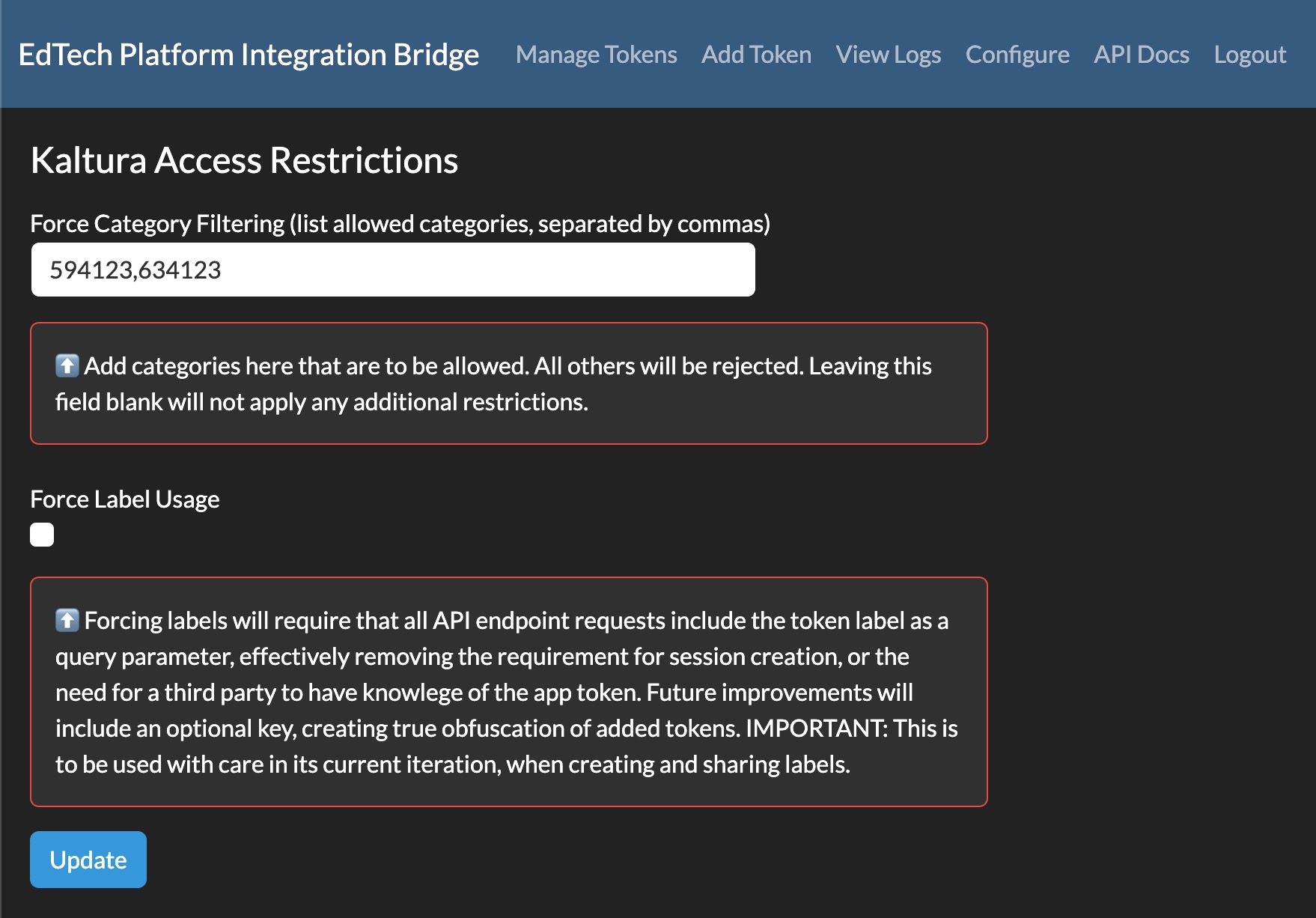
Configuration Page - Kaltura Restrictions
Force Category Filtering can include a restrictive comma-delimited listing of categories (alphanumeric) to be allowed when external applications (vendors, institutional, etc) are requesting data about entries, users, captions, etc - leveraging Kaltura APIs. All requests to APIs that state a category not listed here will be rejected.
Leaving this field blank will not apply additional restrictions on categories, effectively disabling this option.
Force labels will require that all API endpoint requests include the token label as a query parameter, effectively removing the requirement for session creation, or the need for a third party to have knowlege of the app token. Future improvements will include an optional key, creating true obfuscation of added tokens.
Important
Force labels is to be used with care in its current iteration because of the ability to bypass session creation processes
Configure App Token Session Creation

Configuration Page - Kaltura Restrictions
Partner ID is required for the creation of temporary “widget” sessions during the creation of app token sessions.
Session Expiration can be used to override the default session on new sessions created by developer app tokens.
Select to temporarily store session tokens created when calling session creation endpoints. Currently, this depends on selecting force labels (above). When selected, an app token KS will be stored in the database for subsequent use and efficiency. With each API request, an expiration check is performed. A new KS will then be created and the expired KS will be removed.
UI Customization
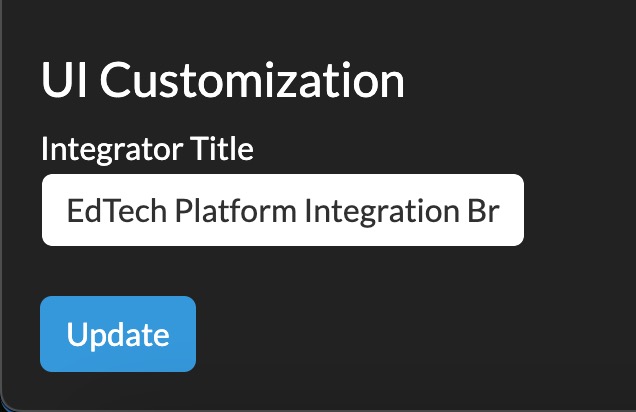
Configuration Page - User Interface Customization
Currently, an option exists to rename the title of the Platform Integration Bridge to something that suits your use case and environment.